Linux Package Management: Day 05
📦 What is Package Management?
Linux uses package managers to install, update, and remove software efficiently while resolving dependencies.
🧰 1. Debian/Ubuntu: apt (Advanced Package Tool)
Update package list:
sudo apt updateUpgrade packages:
sudo apt upgradeInstall a package:
sudo apt install package-nameRemove a package:
sudo apt remove package-nameRemove unused packages:
sudo apt autoremoveSearch for a package:
apt search nginx🍱 2. RHEL/CentOS/Rocky: yum and dnf
On RHEL 8+ and Fedora, use
dnfinstead ofyum.
Update repository cache:
sudo dnf makecacheInstall a package:
sudo dnf install httpdRemove a package:
sudo dnf remove httpdList installed packages:
dnf list installedSearch packages:
dnf search nginx📁 3. Using rpm Directly
Install from .rpm file:
sudo rpm -ivh package.rpmUpgrade an RPM:
sudo rpm -Uvh package.rpmRemove an RPM:
sudo rpm -e package-nameQuery installed RPMs:
rpm -qa | grep nginx🧊 4. openSUSE: zypper
Install a package:
sudo zypper install vimRemove a package:
sudo zypper remove vimUpdate system:
sudo zypper updateSearch:
zypper search nginx📜 5. Package Information
Show detailed package info:
APT:
apt show curlDNF:
dnf info curlRPM:
rpm -qi curl🗃️ 6. Cleaning Up
APT:
sudo apt clean
sudo apt autoremove
DNF/YUM:
sudo dnf clean all🛡️ 7. GPG Keys and Repositories
Add a GPG key (APT):
wget -qO - https://example.com/key.gpg | sudo apt-key add -Add a custom repo (YUM/DNF):
Create file in /etc/yum.repos.d/custom.repo:
[custom-repo]
name=Custom Repository
baseurl=http://example.com/repo/
enabled=1
gpgcheck=0
✅ Summary
| Tool | Distros | Command Examples |
|---|---|---|
| APT | Debian, Ubuntu | apt install, apt update, apt remove |
| YUM | RHEL 7, CentOS 7 | yum install, yum update, yum remove |
| DNF | RHEL 8+, Fedora | dnf install, dnf upgrade, dnf clean |
| RPM | All RPM-based distros | rpm -ivh, rpm -e, rpm -qa |
| Zypper | openSUSE | zypper install, zypper remove, update |
Linux package management ensures reliable and secure software deployment.
🛠️ How to Create a Local YUM Repository Using an ISO
This guide explains how to set up a local YUM repository from an ISO file on RHEL, CentOS, AlmaLinux, or Rocky Linux.
📥 1. Mount the ISO File
mkdir -p /mnt/iso
mount -o loop /dev/sr0 /mnt/iso
📂 2. Copy ISO Contents (Optional but Recommended)
mkdir -p /var/www/html/yumrepo
cp -av /mnt/iso/* /var/www/html/yumrepo/
umount /mnt/iso
This step ensures the repository is persistent across reboots.
📝 3. Create the Local Repo File
Create a new file /etc/yum.repos.d/local.repo with the following content:
✅ If you copied the ISO contents:
[LocalRepo]
name=Local Repository
baseurl=file:///var/www/html/yumrepo
enabled=1
gpgcheck=0
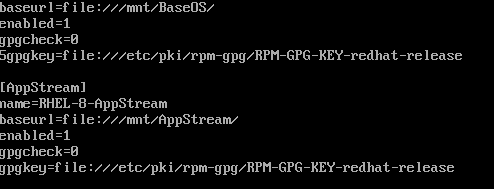
🔁 If using the ISO directly (without copying):
[LocalRepo]
name=Local Repository
baseurl=file:///mnt/iso
enabled=1
gpgcheck=0- Example is given below:
🔄 4. Clean YUM and Check the Repository
yum clean all
yum repolist
You should now see LocalRepo listed in the repository list.
🌐 5. (Optional) Serve the Repo via HTTP
This is useful if you want to share the repo with other machines.
Install Apache:
yum install -y httpd
systemctl enable --now httpd
Allow Apache Access with SELinux (if enabled):
chcon -R -t httpd_sys_content_t /var/www/html/yumrepoUpdate the Repo File:
Edit /etc/yum.repos.d/local.repo to use HTTP:
[LocalRepo]
name=Local Repository
baseurl=http://localhost/yumrepo
enabled=1
gpgcheck=0
✅ Done!
You now have a local YUM repository set up using an ISO image. You can use it offline, or serve it to multiple machines via HTTP.
📊 Linux Monitoring
Monitoring Linux is critical for performance tuning, capacity planning, and troubleshooting. Below are essential CLI tools for real-time and historical system monitoring.
🧠 1. CPU and Memory Monitoring
top — real-time system performance
top- Press
Mto sort by memory. - Press
Pto sort by CPU usage.
htop — enhanced top (colorful UI)
htopInstall via:
sudo apt install htoporsudo dnf install htop
vmstat — memory, processes, and system info
vmstat 1 51 5: sample every second for 5 times
free — memory usage
free -h💿 2. Disk Monitoring
df — disk space usage
df -hdu — directory size
du -sh /var/logiostat — CPU and I/O stats
iostat -xz 1 3Install via:
sudo apt install sysstatorsudo dnf install sysstat
🌐 3. Network Monitoring
ip a or ifconfig — IP addresses
ip ass — socket statistics (replacement for netstat)
ss -tuln-tuln: TCP/UDP listening sockets without resolving names
netstat — old but useful
netstat -plntuMight require
net-toolspackage.
nload — network bandwidth usage
nloadInstall:
sudo apt install nloadorsudo dnf install nload
📈 4. System Activity Reports
sar — historical performance stats
sar -u 1 3Collects CPU usage every 1 second, 3 times.
Enable sar:
sudo systemctl enable sysstat
sudo systemctl start sysstat
🔍 5. Process & Service Monitoring
ps — process status
ps aux | grep nginxpidstat — individual process usage
pidstat -p <PID>systemctl — service status
systemctl status nginx🧪 6. Other Useful Tools
| Tool | Description | Install Command |
|---|---|---|
iotop | Show I/O usage per process | sudo apt install iotop |
glances | All-in-one monitoring dashboard | sudo apt install glances |
atop | Advanced top-like monitor | sudo apt install atop |
dstat | Realtime resource monitor | sudo apt install dstat |
✅ Summary Table
| Resource | Command | Notes |
|---|---|---|
| CPU | top, htop, sar | Real-time and historical usage |
| Memory | free, vmstat | RAM and swap |
| Disk | df, du, iostat | Disk space and I/O |
| Network | ss, netstat, nload | Connections & bandwidth |
| Processes | ps, pidstat | Process info and PID usage |
| Services | systemctl | Service status |
🔁 Automating Monitoring Reports
You can use cron to schedule logs and save stats:
*/5 * * * * sar -u 1 5 >> /var/log/cpu_usage.logLinux monitoring is essential to keep your systems healthy and responsive. Regular usage of these tools helps you stay ahead of issues before they impact users.